Global Video Enhancer Interactive video tutorial

Try it here without changing your browser

Make any video look better.

Pick a fix. Move one slider. Drag the line to see the change.

  1. 1Pick a fixStart with a preset.
  2. 2Move a sliderWatch the picture.
  3. 3Drag the lineCompare before and after.
Using the extensionOpen it from the chameleon on a video

Click the chameleon on the active video to open the controls. You can also pin Global Video Enhancer from Chrome's puzzle-piece menu.

Test your own

Try your own screenshot

Try the same controls on a screenshot. It stays on this device and is never uploaded to or saved by this website.

Choose a screenshot. Nothing leaves this page.

Your screenshot will appear here Then move any slider and compare it with the original.
Global Video Enhancer chameleon
Screenshot adjustment controls
White balance
Light and colour
Tone curve
Detail
Compare
Chameleon launcher

1 White balance

Fix a strange colour cast

Make skin tones and the white dress look natural again.

Preset applied: 5900K · tint +10

Wedding couple under a green colour cast before white-balance correction
Wedding couple with corrected white balance after the tutorial adjustment
Original Changed
Use this in the extension

Choose Pick White Balance, then click something white or grey in the video.

2 YouTube and streaming

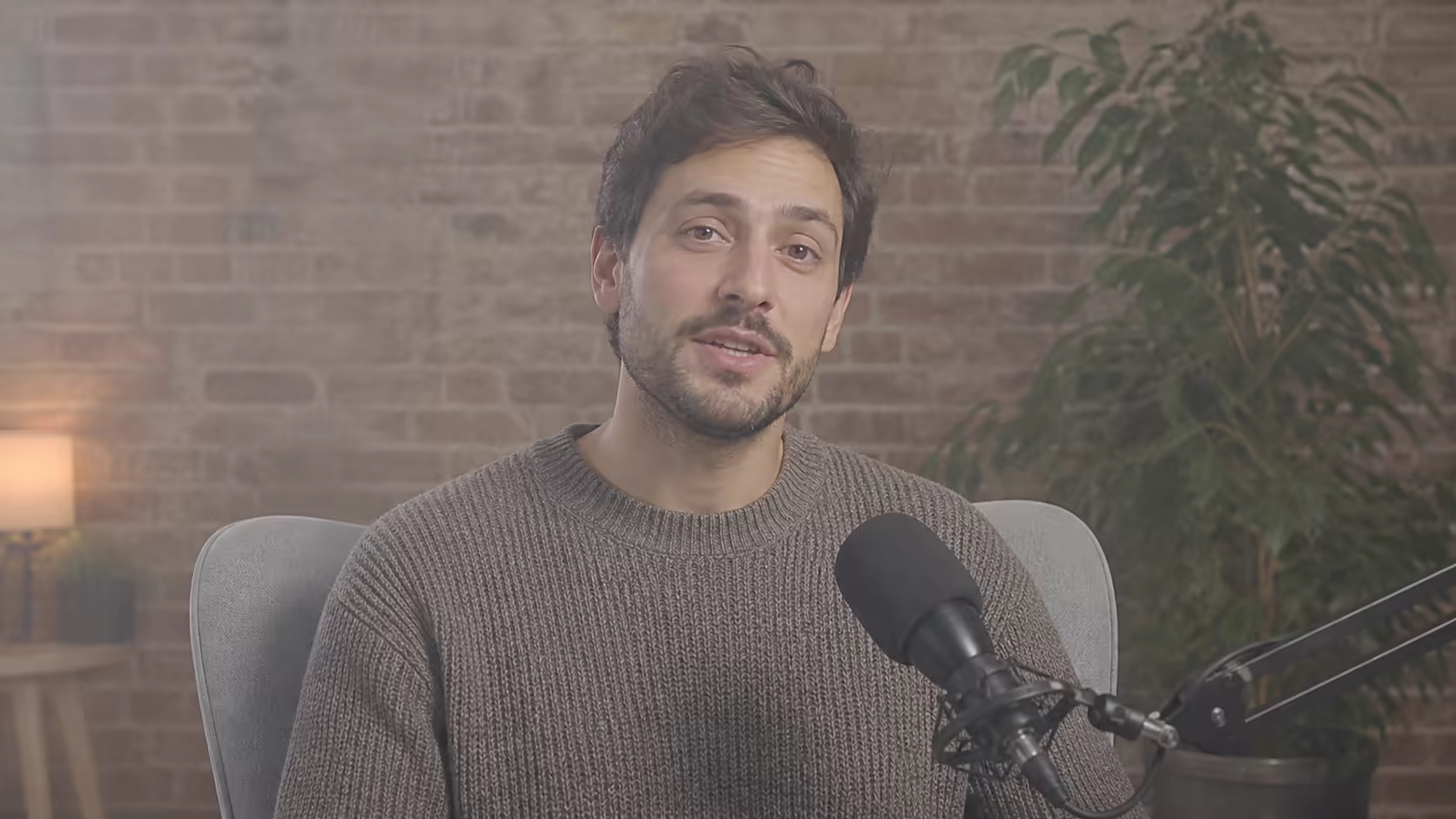
Clear soft detail

Bring back edges lost to compression.

Preset applied: dehaze +14% · sharpness +3% · saturation 121%

A soft hazy creator video with visible hair, knitwear, brick, leaves and a microphone
Original Changed
Use this in the extension

Choose the YouTube preset. Stop sharpening if edges start to glow.

3 Bright and dark scenes

Bring back bright detail

Lower highlights for windows; lift shadows for dark corners.

Preset applied: highlights -38% · midtones -5% · shadows +18%

A backlit reader with a bright curtain, normal face and jumper, and dark shelves and jeans
Original Changed
Use this in the extension

Use Levels or the tone curve. Keep the end points anchored; shape the light between them.

4 Animation and anime

Make anime lines pop

Use the preset for crisp line work and lively colour without a harsh look.

Preset applied: contrast 100% · saturation 120% · sharpness +72%

An original softly detailed anime courier on a rooftop at blue hour
Original Changed
Good starting point

Start here, then lower sharpness if outlines look crunchy.

Now try it on a video you already watch.

Open a video, click the chameleon, choose a preset, and adjust from there. Resetting live adjustments does not erase settings saved for a website or video.

Start again